


Login / Passwort / MFA – Multi-Faktor-Authentifizierung
for your university services
Login / Passwort / MFA – Multi-Faktor-Authentifizierung
Hochschulkonto aktivieren/ freischalten
On the page https://www.hs-coburg.de/activate, you can activate your university account and set your initial password.
During activation, your login name (e.g., mic1234s@hs-coburg.de) will be displayed.
Forgot your login name?
Your personal login name (e.g., mic1234s@hs-coburg.de) is printed on the back of your student ID card.
Forgotten your password?
On the website https://myapps.hs-coburg.de/s/passwort-vergessen, you can reset your password yourself if you’ve forgotten it.
MFA (Multi-Factor Authentication) for Your University Services
 – More than just a username and password –
Secure your account now with MFA—the simple and secure way to log in to university services
MFA has been enabled for all accounts since March 2024.
NEED HELP?
or by email: IT-SERVICE@hs-coburg.de
ANONYMOUS FEEDBACK
Help with MFA (Multi-Factor Authentication)
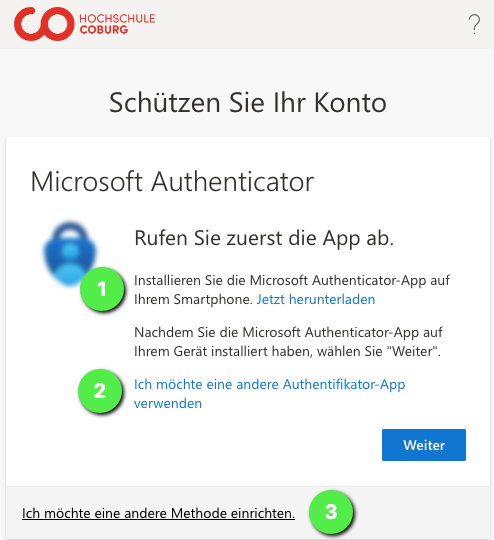
Choose the right login methods
- Passkey (master key) in your personal account (Google, Apple ID) or on a hardware key (Yubikey, …)
- Microsoft Authenticator app
- Other authenticator app (e.g., Google Authenticator, TOTP, etc.)
We recommend setting up Microsoft Authenticator + Passkey.
Are you already using MFA?
Then please help your fellow students and colleagues get set up and share your positive experiences.
Did you have any problems with MFA? If so, please send a brief message to IT-Service@hs-coburg.de
We’ll try to resolve the issue for you and everyone else to make MFA easier to use.
Why is MFA necessary?
More and more of your personal data is being stored in a wide variety of systems.
We aim to make it increasingly difficult for unauthorized individuals to access this data.
We want your data to be easily accessible to you.
MFA (multi-factor authentication) means, among other things, that you have a variety of options for accessing your protected data in different situations.
Passwords alone are not sufficient for this purpose.
That’s why, at MFA, you use personal devices you trust to log in.
These can be personal computers, your phone, smartphones, or hardware tokens (e.g., Yubikey USB chip, smart cards).
When you set up MFA, a trust relationship is permanently “established” between you, your personal device, and your Microsoft 365 account.

A secure storage area within the device (TPM chip) stores your Microsoft 365 digital identity.
No hacker has access to your physical device. This prevents unauthorized individuals from accessing your data.
For Experts: Login Factors at the University
To access your data, you can combine factors
- With a password
, plus - a TOTP app (e.g., Microsoft Authenticator, Google Authenticator, …)
And in addition, without a password with
- Authentication app (Microsoft)
 on your smartphone, which is protected by a PIN (at least 6 digits), fingerprint, or Face ID (Recommended)
 - A hardware token (e.g., Yubikey) protected by a PIN (rarely recommended) FOR EMPLOYEES ONLY:
- Hello for Business for your work computer, protected by a PIN (at least 6 digits), fingerprint, or Face ID
Your devices (computers, mobile devices, etc.) and your apps and programs remember your access credentials and rarely prompt you for them.
For more information on the MFA activation process, visit mycampus
FAQs
"Why am I asked for my login information several times a day?"
When you set up MFA, a trust relationship is permanently “established” between you, your personal device, and your Microsoft 365 account.
If you are asked for your login credentials multiple times a day, this may be due to the following reasons:
- You delete all cookies when you close your browser.
Solution: Add the two addresses “azure.com” and “microsoftonline.com” to your list of exceptions.
You can also get help at IT-Service@hs-coburg.de
"Do I need to install Microsoft Authenticator as an app?"
No. You do NOT need to install the “Microsoft Authenticator app”!
For MFA, a passkey in your personal account (Google, Apple ID) or a TOTP app is sufficient.
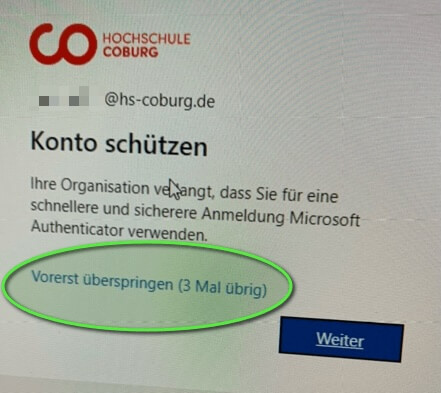
If you see the “Protect your account” message and do not want to install Microsoft Authenticator, you can do the following:
- Restart your computer
- Wait one day Click “Skip for now”
- Report the issue at IT-Service@hs-coburg.de
"Do I need a smartphone or a cell phone?" (Keyword: TOTP)
No.
When you set up MFA, a “ trust relationship “ is established between your personal devices and your Microsoft 365 account.
This is also possible without a smartphone or cell phone.
However, a mobile device (smartphone, phone with SMS, voice calls, or an app) offers particular flexibility for logging in with MFA at any time.
MFA on your computer
You can, however, use secure login with MFA even without a smartphone or phone.
Simply install an app with MFA functionality (TOTP), such as a password manager (Bitwarten, KeePassXC, etc.), on your computer.
Then visit the website https://mysignins.microsoft.com/security-info
"How can I log out or sign out?"
How can I log out or sign out?
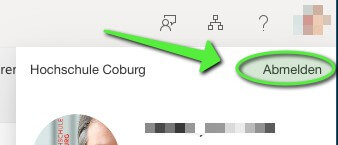
The logout functions in some applications (Moodle, MyCampus, etc.) do not work because the application automatically logs you back in via SSO (Single Sign-On, Shibboleth, Azure AD) when you reopen it.
On the website
https://myaccount.microsoft.com/device-list
you can log out of the browser you’re using.
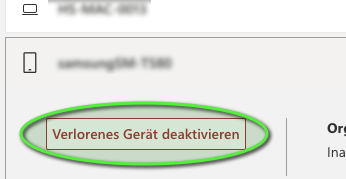
On this webpage, you can also view your registered devices. If a device is lost, you can “deactivate” it there.
Microsoft Authenticator app for your smartphone
1. Open the website
(It’s best to open this website on a computer or tablet)
mysignins.microsoft.com
2. Log in with your university account
Log in using your full username (e.g., mic1234s@hs-coburg.de).
This is not an email address.


3. Enable Microsoft Authenticator for your account
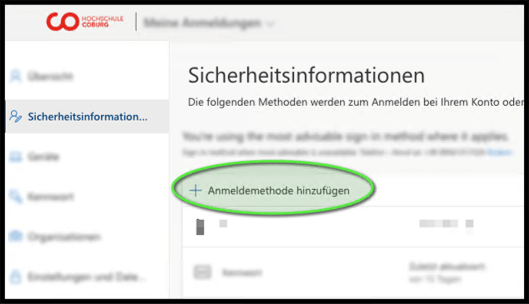
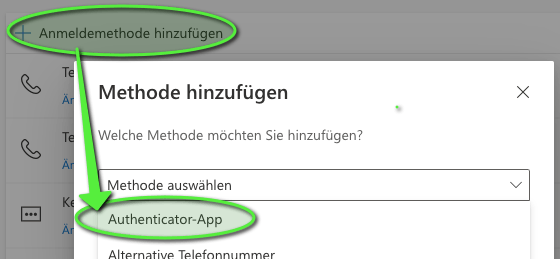
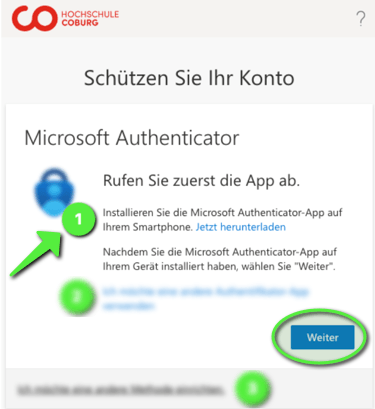
4. Microsoft Authenticator app for your smartphone


5. Open the Microsoft Authenticator app on your smartphone
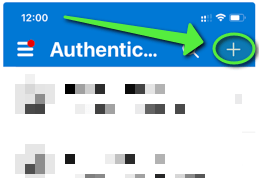
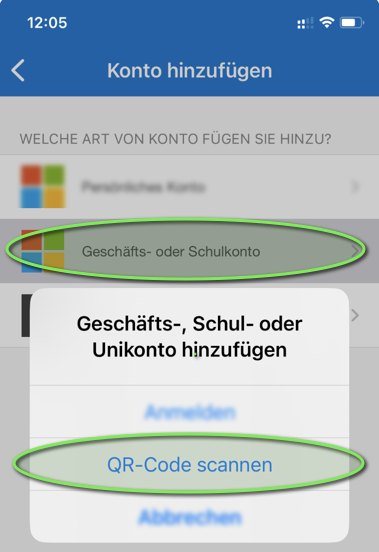
Follow the remaining instructions.

Done.
Stay logged in
Therefore: Select “STAY LOGGED IN” on your personal devices!
6. Enable passwordless sign-in with Microsoft Authenticator
Open your account in the app (Microsoft Authenticator) and select “Enable sign-in by phone”
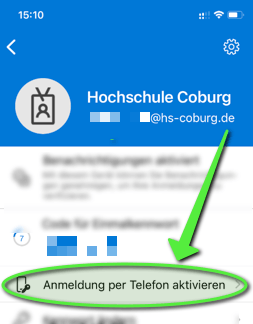
Follow the remaining instructions.
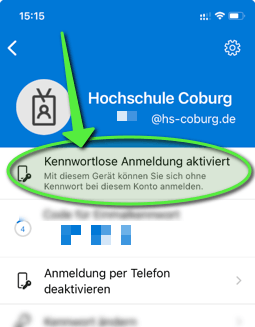
Once your smartphone is registered, you can use “passwordless sign-in.”
For example, on the page https://mysignins.microsoft.com/security-info